
Input
The engine handles keyboard and mouse input in two steps:
- An input system listens to the browser. It dispatches every key or mouse event on the
world as
KeyboardInputorMouseInput. - A control system reads those events. It finds actors with a
KeyboardControlorMouseControlcomponent and dispatches your events on them, as the component’s bindings say.
So game logic does not check keys. You bind KeyW to a Move event in the editor, and a system
listens for Move.
There are four systems, all of them world systems:
| System | What it does |
|---|---|
KeyboardInputSystem |
Dispatches KeyboardInput on the world |
KeyboardControlSystem |
Dispatches the bound events on actors with KeyboardControl |
MouseInputSystem |
Dispatches MouseInput on the world |
MouseControlSystem |
Dispatches the bound events on actors with MouseControl |
Setting it up
Section titled “Setting it up”-
In the Systems tab, add the systems for the input you need: Keyboard Input System and Keyboard Control System for the keyboard, Mouse Input System and Mouse Control System for the mouse.
-
Add the classes to the engine in
src/index.ts:import {Engine,KeyboardInputSystem,KeyboardControlSystem,MouseInputSystem,MouseControlSystem,KeyboardControl,MouseControl,} from 'dacha';const engine = new Engine({config,systems: [KeyboardInputSystem,KeyboardControlSystem,MouseInputSystem,MouseControlSystem,...gameSystems,],components: [KeyboardControl, MouseControl, ...gameComponents],assets: [],}); -
Add a
KeyboardControlorMouseControlcomponent to each actor that reacts to input.
The mouse systems also need CameraSystem. MouseInputSystem uses it to convert the pointer position to world coordinates.
Order in the systems list
Section titled “Order in the systems list”MouseInputSystem must come before MouseControlSystem.
Put your own systems that read MouseInput after MouseInputSystem too.
The keyboard systems’ order in the list does not matter.
Where input comes from
Section titled “Where input comes from”Both input systems have the same two options:
| Option | What it does |
|---|---|
useWindow |
Listens on window. The default is true |
windowNodeId |
The id of the element to listen on when useWindow is off |
An element receives key events only when it has focus.
Keyboard control
Section titled “Keyboard control”A KeyboardControl component holds a list of bindings. Each binding has these fields:
| Field | What it does |
|---|---|
key |
The key, as KeyboardEvent.code: KeyW, Space, ArrowUp |
pressed |
true sends the event when the key goes down. false sends it when the key goes up |
keepEmit |
Sends the event again in every frame while the key is held. Only for pressed bindings |
eventType |
The name of the event to dispatch on the actor |
attrs |
Values to put in the event payload |
key is the physical key, not the character it types. KeyW is the same key on every keyboard
layout.
In the editor, press the pencil next to Key and then press the key you want.
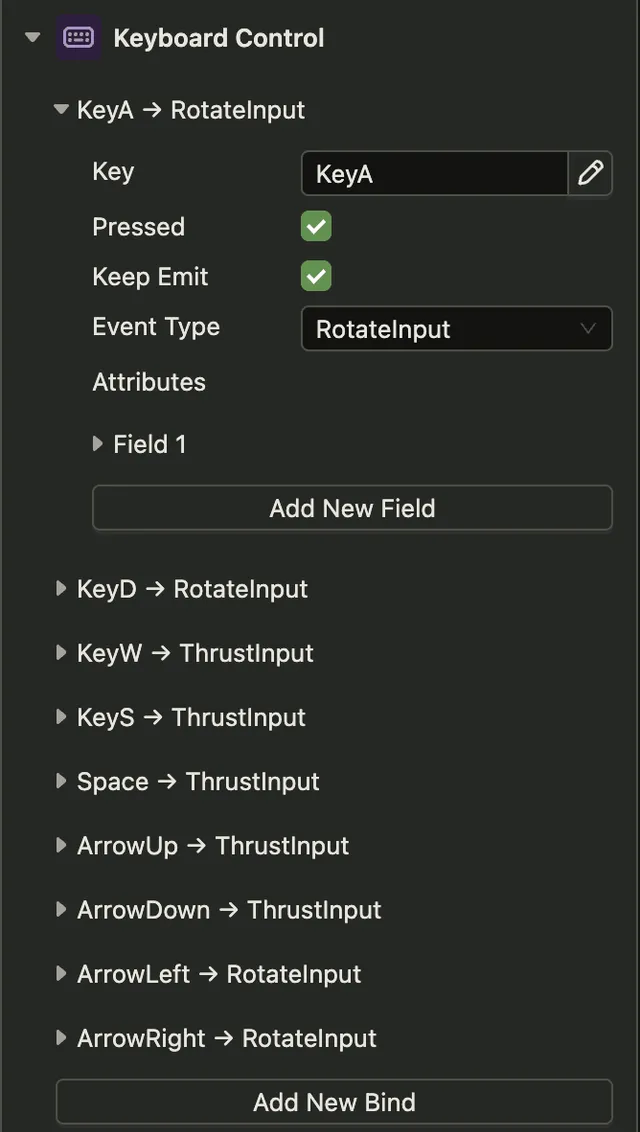
A pressed binding without keepEmit sends one event per press. The browser repeats keydown
while a key is held, and the system ignores those repeats.
keepEmit is for actions that last while the key is down, such as movement.
Mouse control
Section titled “Mouse control”A MouseControl component also holds a list of bindings:
| Field | What it does |
|---|---|
event |
The browser event: mousedown, mouseup, mousemove, click, contextmenu, dblclick, mouseenter or mouseleave |
button |
The mouse button for mousedown and mouseup: 0 is left, 1 is middle, 2 is right |
eventType |
The name of the event to dispatch on the actor |
attrs |
Values to put in the event payload |
In the editor, each mouse event can have one binding.
The payload of a mouse control event has your attrs and these fields:
| Field | What it is |
|---|---|
x, y |
The pointer position in world coordinates |
screenX, screenY |
The pointer position in pixels, relative to the window element |
nativeEvent |
The browser’s MouseEvent |
Despite their names, screenX and screenY are not the browser’s screenX and screenY.
Handling a control event
Section titled “Handling a control event”A control event is an actor event, so it propagates from the actor to the scene and the world:
const handleMove = (event: MoveEvent): void => {  const movement = event.target.getComponent(Movement);  movement.directionX += event.x;  movement.directionY += event.y;};
scene.addEventListener(Move, handleMove);
Declare your event names in src/events/index.ts, and the editor offers them in the
eventType field. See declaring your own
events.
dacha has two types for the payload. KeyboardControlEvent<T> is an actor event with your
attributes. MouseControlEvent<T> adds the pointer fields:
import type { MouseControlEvent } from 'dacha/events';
export type ShootEvent = MouseControlEvent<{ weapon: string }>;
Every actor with a matching binding receives the event. When several actors have the same binding, one key press reaches all of them.
Reading raw input
Section titled “Reading raw input”To handle input without a control component, listen for KeyboardInput or MouseInput on the
world:
import { KeyboardInput, type KeyboardInputEvent } from 'dacha/events';
const handleKey = (event: KeyboardInputEvent): void => {  if (event.key === 'Escape' && event.pressed) {    // open the pause menu  }};
world.addEventListener(KeyboardInput, handleKey);| Event | Payload |
|---|---|
KeyboardInput |
key, pressed, nativeEvent |
MouseInput |
eventType, button, x, y, screenX, screenY, nativeEvent |
Raw KeyboardInput includes the browser’s repeated keydown events. x and y of MouseInput
are in world coordinates, as in control events. Without a current camera, they stay in pixels.