
Audio
AudioSystem plays sounds attached to actors. Each sound comes from an AudioSource component.
You start and stop it through that component. Volume for a whole group of sounds goes through
AudioAPI.
The system uses the browser’s Web Audio API.
Setting it up
Section titled “Setting it up”-
In the Systems tab, add Audio System.
-
Add the classes to the engine in
src/index.ts:import { Engine, AudioSystem, AudioSource } from 'dacha';const engine = new Engine({config,systems: [AudioSystem, ...gameSystems],components: [AudioSource, ...gameComponents],assets: [],}); -
Add an
AudioSourcecomponent to each actor that plays a sound.
Order in the systems list
Section titled “Order in the systems list”AudioSystem starts and stops sounds in update. Put it after the systems that call play()
and stop(). If behaviors play sounds, that includes BehaviorSystem.
The AudioSource component
Section titled “The AudioSource component”| Field | What it does |
|---|---|
src |
Path to the sound file. The editor accepts mp3, wav and ogg |
volume |
Volume of this sound, from 0 to 1 |
looped |
Plays the sound again from the start when it ends |
autoplay |
Starts the sound when the actor appears in the active scene |
group |
The audio group the sound plays through. The default is master |
Playing and stopping
Section titled “Playing and stopping”Call play() and stop() on the component:
const audioSource = actor.getComponent(AudioSource);
audioSource.play();audioSource.stop();
play() restarts a sound that is already playing. To leave a playing sound alone, call
play(false).
A sound without looped stops by itself when it ends. There is no pause. After stop(), the
next play() starts the sound from the beginning.
One sound per actor
Section titled “One sound per actor”An actor has one AudioSource, so it plays one sound at a time.
When an actor needs several sounds, for example footsteps and a shot, give each sound its own
child actor with an AudioSource.
Removing an actor stops its sound.
When sounds load
Section titled “When sounds load”AudioSystem loads sounds when a scene loads. It collects every src from two places:
- the actors of that scene,
- all templates in the project.
So an actor you spawn from a template at runtime has its sound ready.
Scene changes
Section titled “Scene changes”AudioSystem is a world system, but sounds do not continue across scenes. When the game leaves
a scene, the system stops every sound that was playing.
In the next scene, sources with autoplay start as soon as the scene becomes active. Music that
should play in several scenes starts from the beginning in each of them.
Audio groups
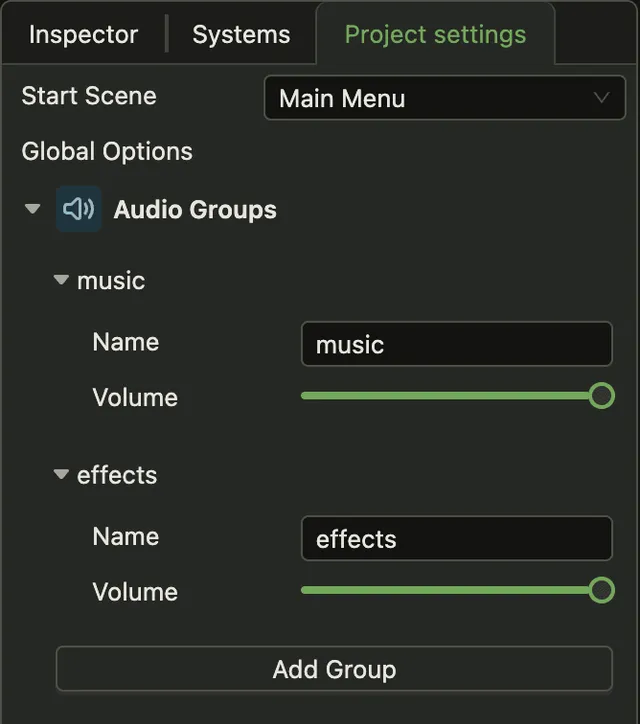
Section titled “Audio groups”A group controls the volume of all sounds that play through it. Use groups to give music and effects separate volume settings.
The master group always exists. Every other group plays through master, so the volume you
hear is the product of three values: the source’s volume, its group’s volume and the master
volume.
You add the other groups in the editor, in the Audio Groups panel of the Project settings tab. Each group has a name and a volume.
Changing group volume at runtime
Section titled “Changing group volume at runtime”Get AudioAPI from the world:
import { AudioAPI } from 'dacha';
const audio = world.systemApi.get(AudioAPI);
audio.masterVolume = 0.5;audio.setGroupVolume('music', 0.2);
const effectsVolume = audio.getGroupVolume('effects');
Browsers block sound until the player acts
Section titled “Browsers block sound until the player acts”A browser plays no sound until the player interacts with the page. AudioSystem turns the
sound on at the first click, key press or touch. A sound that started before that, such as music
with autoplay in the first scene, becomes audible at that moment.