
Animation
Animator plays animations described by an actor’s Animatable component. An animation is a
sequence of frames. Each frame sets values on the actor’s components, such as the current
frame of a sprite sheet.
The animations of one actor form a state machine. Each state is one animation: idle, run, jump. Transitions switch between states when their conditions are true.
Frames set values. They do not blend between them. To move a value smoothly, change it in a system or a behavior.
Setting it up
Section titled “Setting it up”-
In the Systems tab, add Animator.
-
Add the classes to the engine in
src/index.ts:import { Engine, Animator, Animatable } from 'dacha';const engine = new Engine({config,systems: [Animator, ...gameSystems],components: [Animatable, ...gameComponents],assets: [],}); -
Add an
Animatablecomponent to each actor you want to animate.
Order in the systems list
Section titled “Order in the systems list”Put Animator after the systems that change the values its conditions read. A transition then
sees the latest values. Put it before Renderer, so the values an animation frame sets appear on
screen right away.
The animation editor
Section titled “The animation editor”You edit Animatable in the animation editor. Select the actor, and press Open Animation
Editor in its Animatable component.
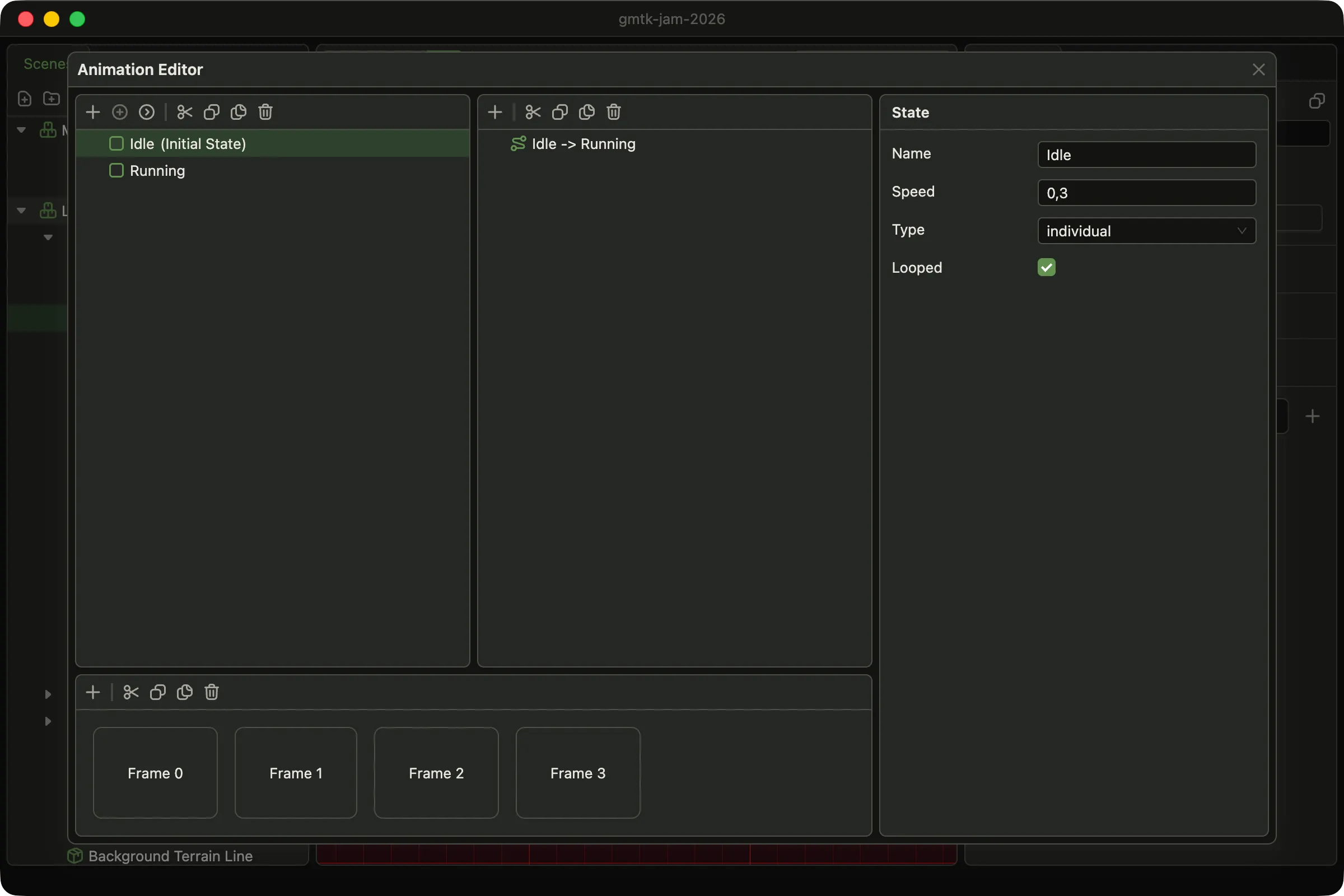
- States. Lists all animation states of the actor.
- Transitions. Lists all transitions from the selected state.
- Timeline. Shows the frames of the selected animation state.
- Inspector. Shows and edits the properties of the selected item.
In the States panel, Set as initial makes the selected state the initial one.
The editor viewport does not play animations. To see them, run the game.
States and frames
Section titled “States and frames”A state has these settings:
| Setting | What it does |
|---|---|
name |
The name shown in the editor |
type |
individual has one timeline. group picks one of several timelines. See group states |
speed |
Playback speed. At 1, each frame lasts 0.1 seconds. At 2, it lasts 0.05 seconds |
looped |
Starts the timeline again after the last frame. Without it, the state stays on the last frame |
One state is the initial state. The actor starts in it when it appears in the scene.
A state needs at least one frame, and speed must be above 0.
Frame fields
Section titled “Frame fields”A frame is a list of fields. Each field has a path, a type and a value. When the frame plays,
Animator writes the value to the path.
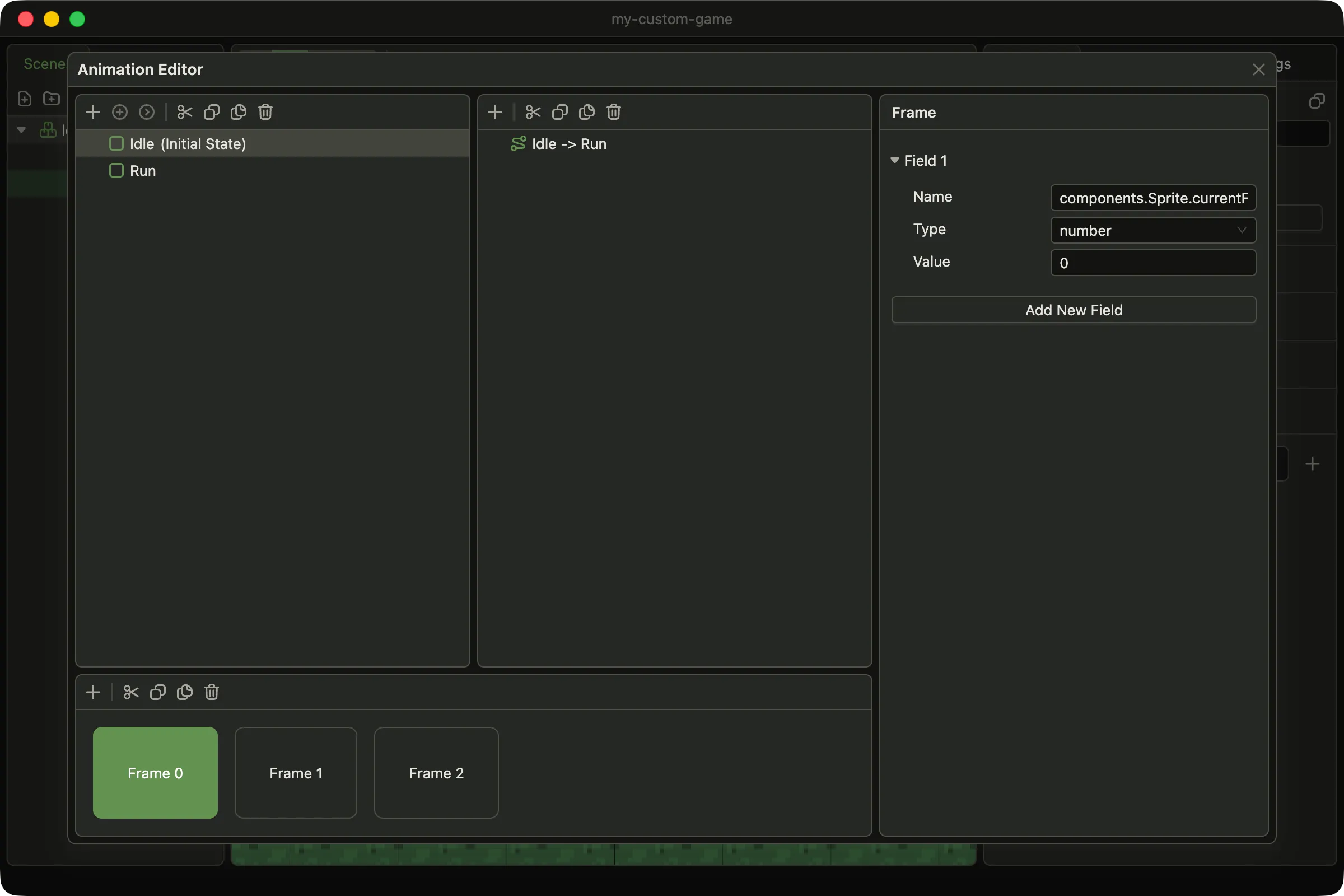
Frame 0 of the Idle state shows the first frame of the sprite sheet.
The path names a value on the actor, with dots between the parts:
| Path | Value |
|---|---|
components.Sprite.currentFrame |
The frame of the actor’s sprite sheet |
components.Sprite.opacity |
The opacity of the actor’s sprite |
children.Sword.components.Sprite.disabled |
Whether the sprite of the child actor named Sword is hidden |
A path can reach any field of any component, including your own components. If the component or the child does not exist, the field is skipped.
A frame sets only the fields it lists. A value stays as it is until another frame changes it. So if one state hides a sprite, the states it switches to must show it again.
A new frame has no fields. To build a timeline quickly, set up the fields of the first frame, copy it, paste it several times, and change only the values.
Transitions
Section titled “Transitions”A transition belongs to a state and points to another state. Animator checks the transitions of
the current state in every frame:
- A transition fires when all its conditions are true.
- If several transitions can fire, the first one in the list wins.
- A transition with no conditions fires as soon as its
timeallows.
time is measured in plays of the timeline, not in seconds. 0 means the transition can fire at
any moment. 1 means it can fire only after the timeline has played once. Use time 1 with no
conditions to play an animation once and then move on, for example from Attack back to Idle.
When a transition fires, the new state starts from its first frame.
Conditions
Section titled “Conditions”A condition has one of two types.
comparator compares two values. Each value is a number, a string, a boolean, or a
componentValue. A componentValue is a path to a value on the actor, written like a frame path.
The editor shows the operations as symbols:
| Editor | Configuration |
|---|---|
== |
equals |
!= |
notEquals |
> |
greater |
< |
less |
>= |
greaterOrEqual |
<= |
lessOrEqual |
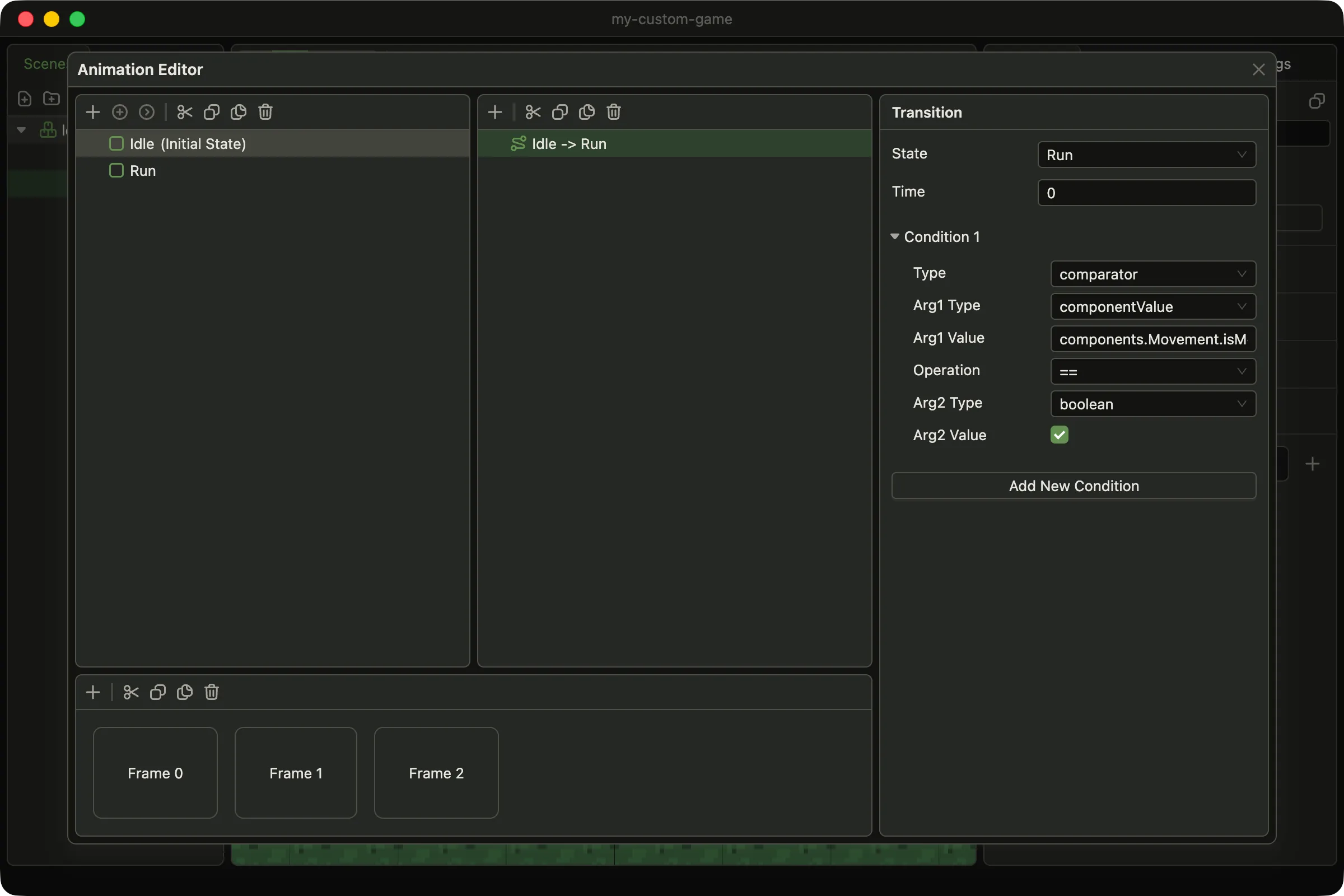
The Idle state goes to Run when components.Movement.isMoving is true.
event becomes true when the actor receives an event of the given type. Use it for things that
happen once: a hit, a jump, a death.
The event must be dispatched on the actor itself. Events dispatched on its children do not count.
Declare your event names in src/events/index.ts, and the editor offers them in the condition. See
declaring your own events.
Group states
Section titled “Group states”A group state holds several substates. Each substate has its own timeline. In every frame,
Animator picks one substate by comparing values on the actor with the position of each substate.
Use a group state for one animation that has variants, such as a character that faces left or right. Transitions belong to the group, so you write them once, not once per variant.
| Setting | What it does |
|---|---|
pickMode |
1D compares one value. 2D compares two |
x, y on the state |
Paths to the values to compare, such as components.Facing.x |
x, y on a substate |
The position of this substate |
Animator picks the substate closest to the current values. For a character that faces left or
right, use pickMode 1D, and set x on the state to the value that holds the direction:
| Substate | x |
|---|---|
Left |
-1 |
Right |
1 |
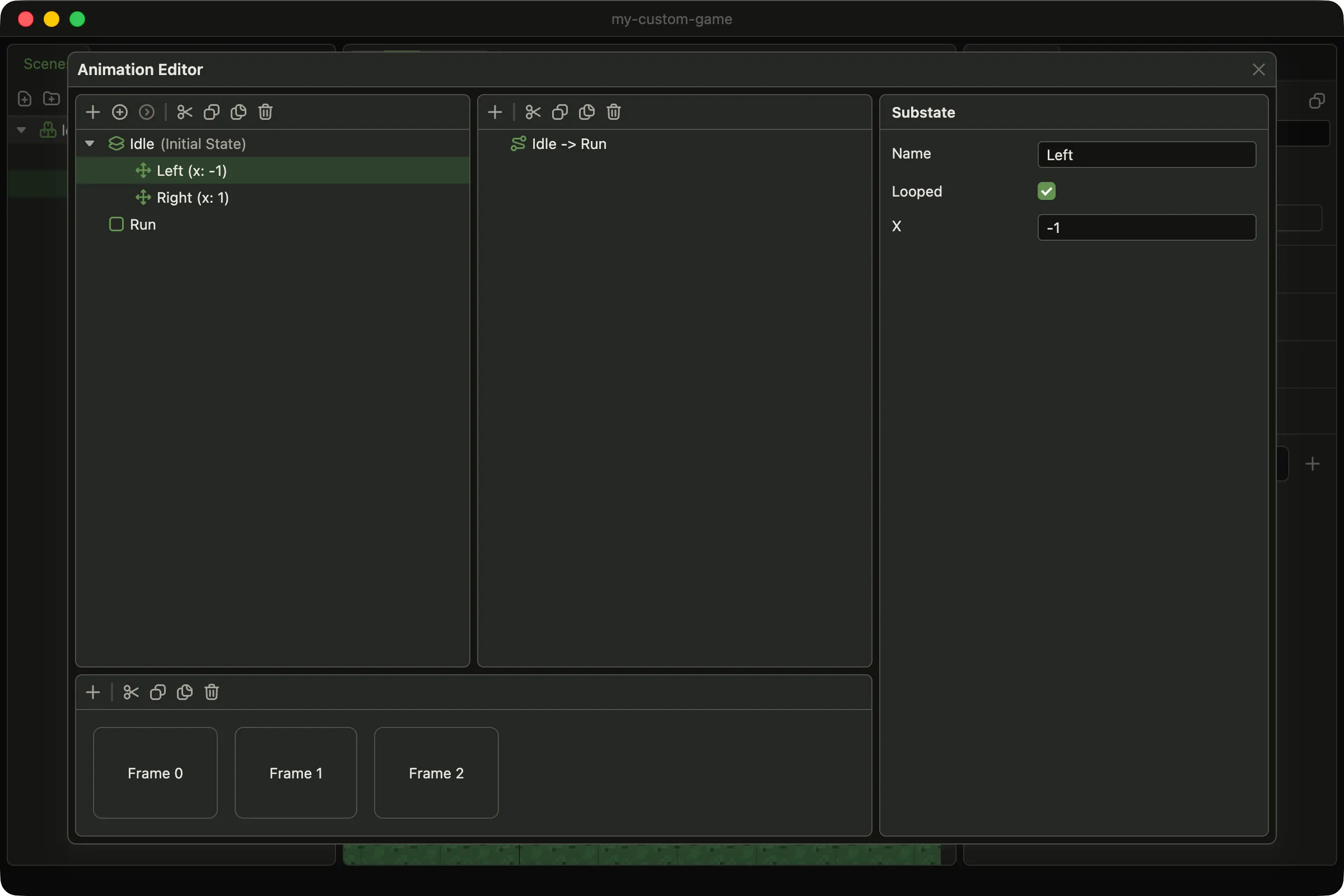
A group state with two substates. The tree shows the x of each substate next to its name.
With pickMode 2D, each substate also has y. An idle in four directions then uses (0, -1),
(0, 1), (-1, 0) and (1, 0).
Each substate has its own frames, so every direction plays its own part of the sprite sheet. Two
directions can share one part. Here Left plays the frames of Right and sets
components.Sprite.flipX to true. Right sets flipX back to false, because a frame changes
only the fields it lists.
When the actor turns, the animation switches to another substate and keeps its progress. A walk cycle continues from the same frame in the new direction.
A group state needs at least one substate.
Adding a state step by step
Section titled “Adding a state step by step”This video builds the Run state from scratch. It copies Idle, adds the
transitions in both directions, and changes the frames. The game on the right switches between the
two animations as the player moves.