
Shaders
Mesh draws an image, like Sprite, but through a shader you choose. The shader is a class in
your project. It returns GLSL code and sets its uniforms.
Use a mesh for effects on one actor: a hit flash, a dissolve, a wave, a color change. For an effect on the whole screen, use a filter effect instead.
The Mesh component
Section titled “The Mesh component”Mesh has the fields of Sprite except fit and textureOffset, plus material:
| Field | What it does |
|---|---|
src |
Path to the image. The editor accepts png |
width, height |
The size of the mesh in world units |
slice, currentFrame |
Sprite sheet frames. See sprite sheets |
flipX, flipY |
Mirror the mesh |
color, opacity, blending, disabled, sortingLayer, sortOffset |
As on every view component |
material |
The shader to use |
Without material, the mesh uses the default shader. It draws the image with its tint and opacity,
like a sprite.
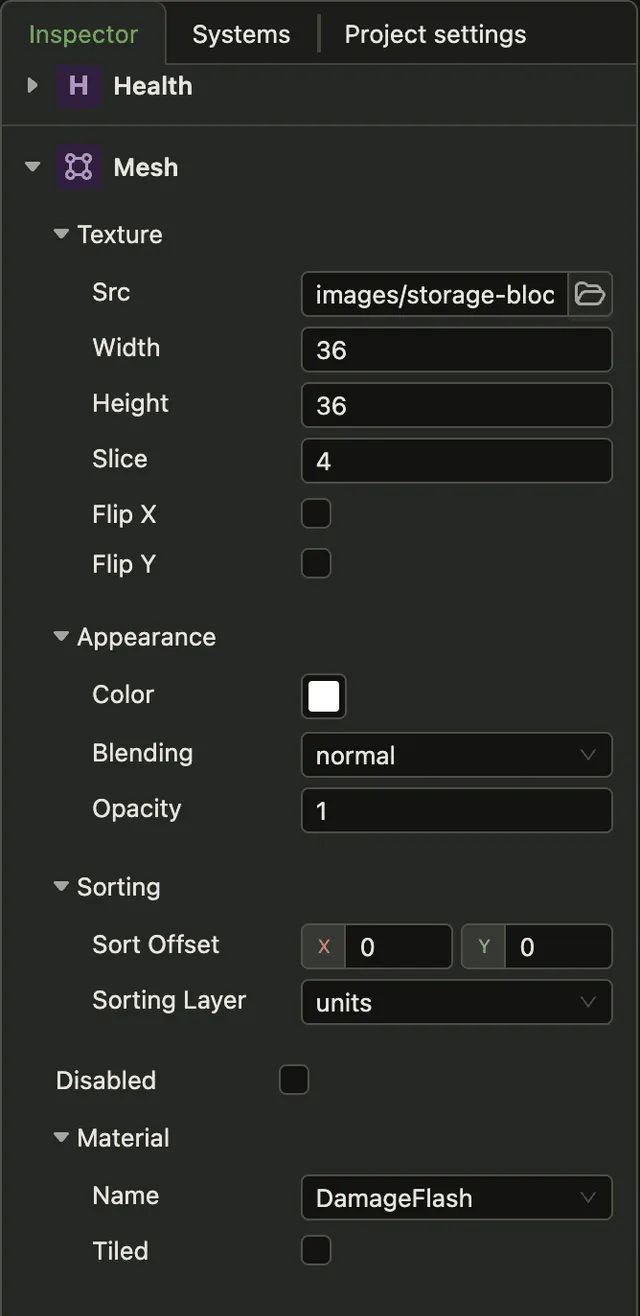
In the editor, pick the shader under Material in the Mesh component. Its fields appear below.
Create New in the same picker generates a shader class.
Writing a shader
Section titled “Writing a shader”A shader extends Shader and is named by @DefineShader. This one flashes the mesh white:
import { Shader, DefineShader } from 'dacha';import type { ShaderUniformDefinitions, ShaderUniforms } from 'dacha/renderer';
interface HitFlashOptions {  amount: number;}
@DefineShader({  name: 'HitFlash',  fields: [{ name: 'amount', type: 'number', initialValue: 0 }],})export default class HitFlash extends Shader {  vertex(): string {    return `      precision mediump float;
      attribute vec2 aPosition;      attribute vec2 aUV;
      uniform mat3 uProjectionMatrix;      uniform mat3 uWorldTransformMatrix;      uniform mat3 uTransformMatrix;
      varying vec2 vUV;
      void main() {        vUV = aUV;
        mat3 mvp = uProjectionMatrix * uWorldTransformMatrix * uTransformMatrix;        vec3 pos = mvp * vec3(aPosition, 1.0);        gl_Position = vec4(pos.xy, 0.0, 1.0);      }    `;  }
  fragment(): string {    return `      precision mediump float;
      varying vec2 vUV;
      uniform sampler2D uSampler;      uniform vec2 uUVOffset;      uniform vec2 uUVScale;      uniform vec3 uTint;      uniform float uAlpha;      uniform float uAmount;
      void main() {        vec4 color = texture2D(uSampler, uUVOffset + vUV * uUVScale);        color.rgb = mix(color.rgb * uTint, vec3(color.a), uAmount);        gl_FragColor = color * uAlpha;      }    `;  }
  uniforms({ amount }: HitFlashOptions): ShaderUniformDefinitions {    return {      uAmount: { value: amount, type: 'f32' },    };  }
  updateUniforms(uniforms: ShaderUniforms, { amount }: HitFlashOptions): void {    uniforms.uAmount = amount;  }}
The class has these methods:
| Method | When it runs | What it returns |
|---|---|---|
vertex(options) |
When the renderer creates the shader | The vertex shader code |
fragment(options) |
When the renderer creates the shader | The fragment shader code |
uniforms(options) |
When the renderer creates the shader | Your own uniforms, with a start value and a type. Optional |
updateUniforms(uniforms, options) |
Every frame | Nothing. Write the new uniform values into uniforms. Optional |
shaderKey(name, options) |
Every frame | A string. When it changes, the renderer creates the shader again. Optional |
The fields on @DefineShader become the fields under Material in the editor. They work as
described in declaring fields on the decorator.
Each method receives the options of the mesh. These are the values of the fields you define.
What the renderer provides
Section titled “What the renderer provides”The mesh is a rectangle. aPosition and aUV both go from 0 to 1 across it. The renderer
sets these values in every frame:
| Name | Type | What it holds |
|---|---|---|
uProjectionMatrix, uWorldTransformMatrix, uTransformMatrix |
mat3 |
The matrices to place the mesh on screen |
uSampler |
sampler2D |
The image of the mesh |
uUVOffset, uUVScale |
vec2 |
The part of the image that holds the current frame. Sample at uUVOffset + vUV * uUVScale |
uFrameSize |
vec2 |
The size of the current frame in pixels |
uTint |
vec3 |
The tint color |
uAlpha |
float |
The opacity |
uTime |
float |
Seconds since the game loop started. See the game loop |
Declare in GLSL only the ones you use. The code the editor generates is the default shader, so it is a good start.
Changing a shader at runtime
Section titled “Changing a shader at runtime”Change material.options, and updateUniforms gets the new values in the next frame:
const mesh = actor.getComponent(Mesh);
if (mesh.material) {  mesh.material.options.amount = 1;}
vertex and fragment run only when the renderer creates the shader. If an option changes the
GLSL code itself, return a shaderKey that includes that option. The renderer then creates the
shader again when the option changes:
shaderKey(name: string, { quality }: BlurOptions): string { return `${name}_${quality}`;}By default the key is the material name. So assigning a different material, or removing it,
switches the shader in the next frame.
Registering shaders
Section titled “Registering shaders”Shader classes reach the renderer through the engine’s resources.
Import them and pass the result to the renderer:
const gameShaders = import.meta.glob('./**/*.shader.ts', { eager: true });
const engine = new Engine({  // ...  resources: {    [Renderer.systemName]: {      shaders: Object.values(gameShaders).map((module) => module.default),    },  },});
See how scripts are found for more information.