
Inspector fields
@DefineField does more than mark a property as editable. It picks the widget the inspector
draws, decides the value a new instance starts with, and can label, group and hide fields so
that a component with a dozen settings still reads well.
Everything on this page works the same way on a component, on a system and on a behavior. Only the place the values are edited changes.
The shortest form
Section titled “The shortest form”@DefineField()name: string;That is a text field named name, labeled Name, starting at ''.
The bare form is for string fields. For any other field, give a type.
Without a type, the editor tries to pick the widget from the initialValue:
initialValue |
The editor draws |
|---|---|
| A number | A number input |
| A string | A single-line text input |
| A boolean | A checkbox |
{ x, y } |
Paired X and Y inputs |
@DefineField({ initialValue: 5 })speed: number;TypeScript checks the decorator against the field. A bare @DefineField() on a number
field is a compile error. So is an initialValue of the wrong type, or a type whose widget
cannot hold the field’s value.
Choosing the widget
Section titled “Choosing the widget”@DefineField({ type: 'range', min: 0, max: 1, step: 0.05 })volume: number;type |
The editor draws | It also takes |
|---|---|---|
string |
A single-line text input | |
number |
A number input | |
boolean |
A checkbox | |
textarea |
A multi-line text input | |
select |
A dropdown | options |
multiselect |
A dropdown that holds several values | options |
multitext |
A list of text inputs you can grow | |
range |
A slider | min, max, step |
color |
A color picker | disabledAlpha |
vector |
Paired X and Y inputs | |
file |
A picker over the project’s assets folder | extensions |
asset |
A dropdown of the project’s assets of one kind | kind |
data |
Nothing at all |
options, extensions and kind are required by the types that take them. Everything else
in that column is optional. A file field stores a path relative to the project’s assets
root. An asset field stores the asset’s id, and shows only the assets whose kind matches. A
slider without min, max and step runs from 0 to 100 in steps of 1.
data is different from the rest. The field is saved and restored like any other, and the
inspector never draws it. Use it for state that belongs in the configuration but that no
generated input should show, such as a value only a
custom widget maintains.
Initial values
Section titled “Initial values”initialValue is what a new instance of the component starts with. The editor writes it into
the configuration when you add the component to an actor. The engine uses it too. When a key
is missing from the configuration, the field gets initialValue. See
how a field gets its value.
Leave it out and the editor writes the empty value for the type:
| Type | Starts at |
|---|---|
string, textarea, select, file, asset |
'' |
number, range |
0 |
boolean |
false |
multiselect, multitext |
[] |
color |
'#ffffff' |
vector |
{ x: 0, y: 0 } |
A data field has no default. Give it an initialValue.
The same value is used when you add a field to a component that actors already carry. See changing the fields later.
Titles come from translations
Section titled “Titles come from translations”Without a title, the editor builds the label from the property name. It splits on case and
on separators, then capitalizes: projectileSpeed becomes Projectile Speed, and
max_hp becomes Max Hp.
title replaces that with a translation key:
@DefineField({ title: 'health.points.title' })points: number;The editor looks the key up in src/locales/index.ts, the file it reads for your project’s
translations. A key with no translation is shown as it is, which makes a missing entry easy to
spot. The path to that file is a setting in the
editor configuration, like the script patterns.
Section names are not translated. They are run through the same name formatter and shown as they are.
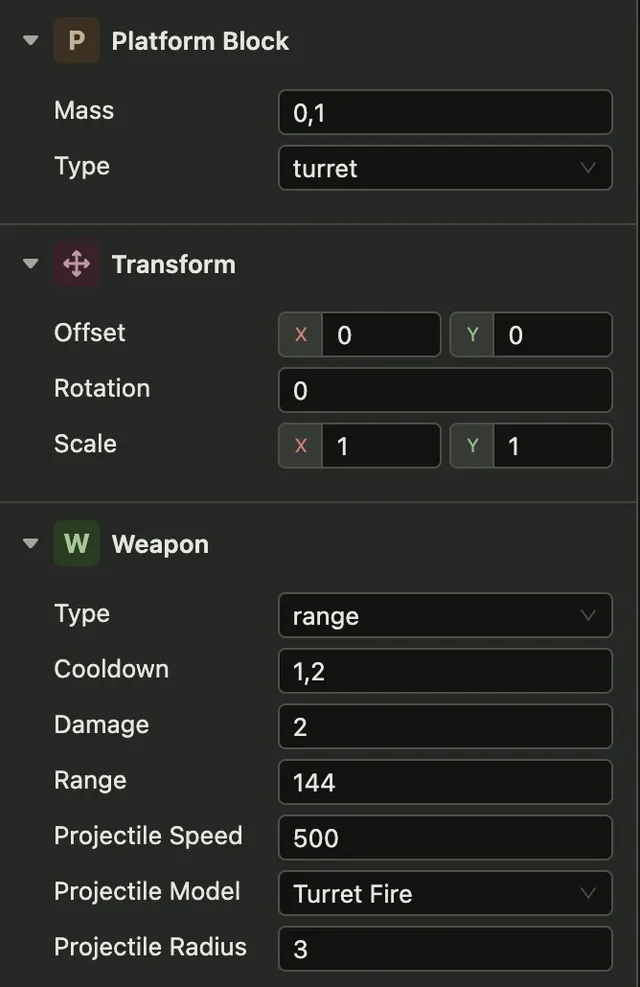
Grouping fields into sections
Section titled “Grouping fields into sections”A component with many fields reads better in groups. section puts a field in one, and the
decorator says which sections start open:
@DefineComponent({  name: 'Launcher',  sections: {    projectile: { defaultOpen: true },  },})export default class Launcher extends Component {  @DefineField({ initialValue: 1.2 })  cooldown: number;
  @DefineField({ section: 'projectile', initialValue: 500 })  projectileSpeed: number;
  @DefineField({ section: 'projectile', initialValue: 3 })  projectileRadius: number;}
The inspector draws fields in the order you declare them. A run of neighboring fields with
the same section becomes one group, and a field without a section ends that run. So
declaring the same section name again further down draws a second group with the same title.
Keep the fields of one section together.
@DefineField also works on a getter or a setter. Decorate one half of a
get/set pair, not both. These fields keep their place in the declaration order too.
Showing a field only when it matters
Section titled “Showing a field only when it matters”dependency ties a field to the value of another one. The field appears when the values
match, and disappears when they stop matching:
@DefineField({ type: 'select', options: ['rectangle', 'circle', 'line'] })type: string;
@DefineField({ type: 'vector', dependency: { name: 'type', value: 'rectangle' } })size: Point;
@DefineField({ type: 'number', dependency: { name: 'type', value: 'circle' } })radius: number;
This is how the built-in Shape component shows one set of measurements per shape. It is
worth copying whenever a component covers several cases, because the alternative is a panel
where most of the inputs do nothing.
A hidden field is not saved. The editor deletes the value when the condition stops matching, and writes the initial value again when it starts matching. So a number typed into a conditional field does not survive switching the shape to something else and back.
Options that depend on the project
Section titled “Options that depend on the project”options on a select takes a plain list, or a function the editor calls when it draws the
field:
@DefineField({ type: 'select', options: (getState) => (getState(['globalOptions', 'name:sorting', 'options', 'layers']) as Layer[]) .map((layer) => layer.name),})layer: string;The function receives a reader over the project’s configuration, so the list can come from
anywhere in it. A second argument carries the field’s own path and whatever context the
widget was drawn with. The built-in components use this to offer the sorting layers, the
audio groups and the collision groups the project actually defines, rather than a list that
goes stale.
Declaring fields on the decorator
Section titled “Declaring fields on the decorator”Fields can also be listed on the decorator itself, instead of on the properties:
@DefineComponent({ name: 'Health', icon: 'HeartPulse', fields: [ { name: 'points', type: 'number', initialValue: 100 }, ],})The two forms merge, and a property’s own @DefineField wins on a name collision. Reach for
the decorator’s list when there is no property to decorate. That happens with a data field,
or when a widget stores something the class does not hold as a plain property.
The engine does not fill a field from this list, because there is no property to fill. Read its value in the constructor.
icon sets the badge next to the component’s name in the inspector, from the
Gravity UI icon set. title overrides the component’s
displayed name the way a field’s title overrides a label.
When fields are not enough
Section titled “When fields are not enough”The list of types covers most components. When yours needs a curve editor, a preview or a control that spans several values at once, you write the React component that draws it. See custom widgets.