
Filter effects
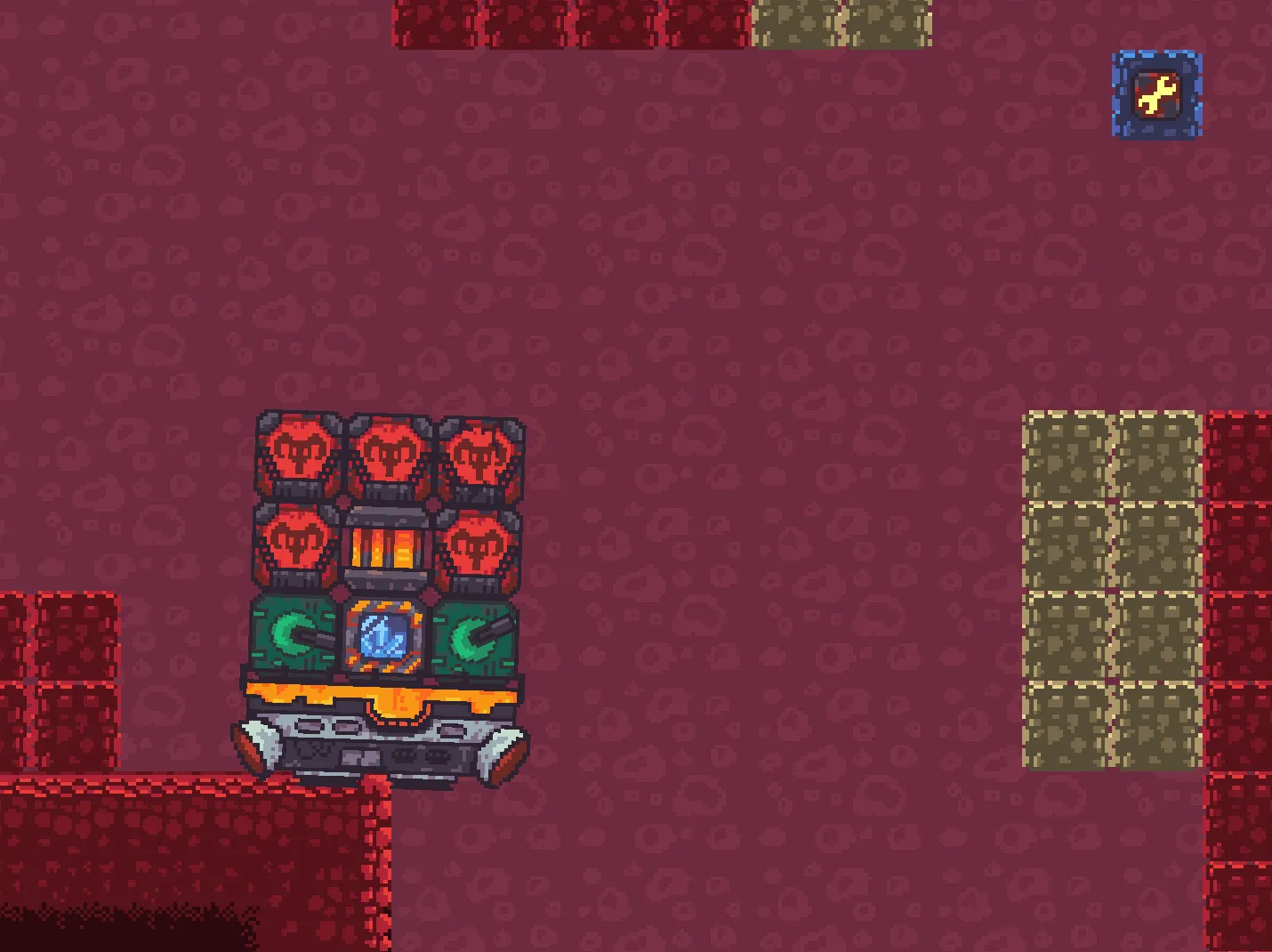
A filter effect changes the whole rendered frame: blur, color grading, a CRT look, a screen flash. The effect is a class in your project. It creates a pixi.js filter, and the renderer applies that filter to everything it draws.
Without effects
With effects
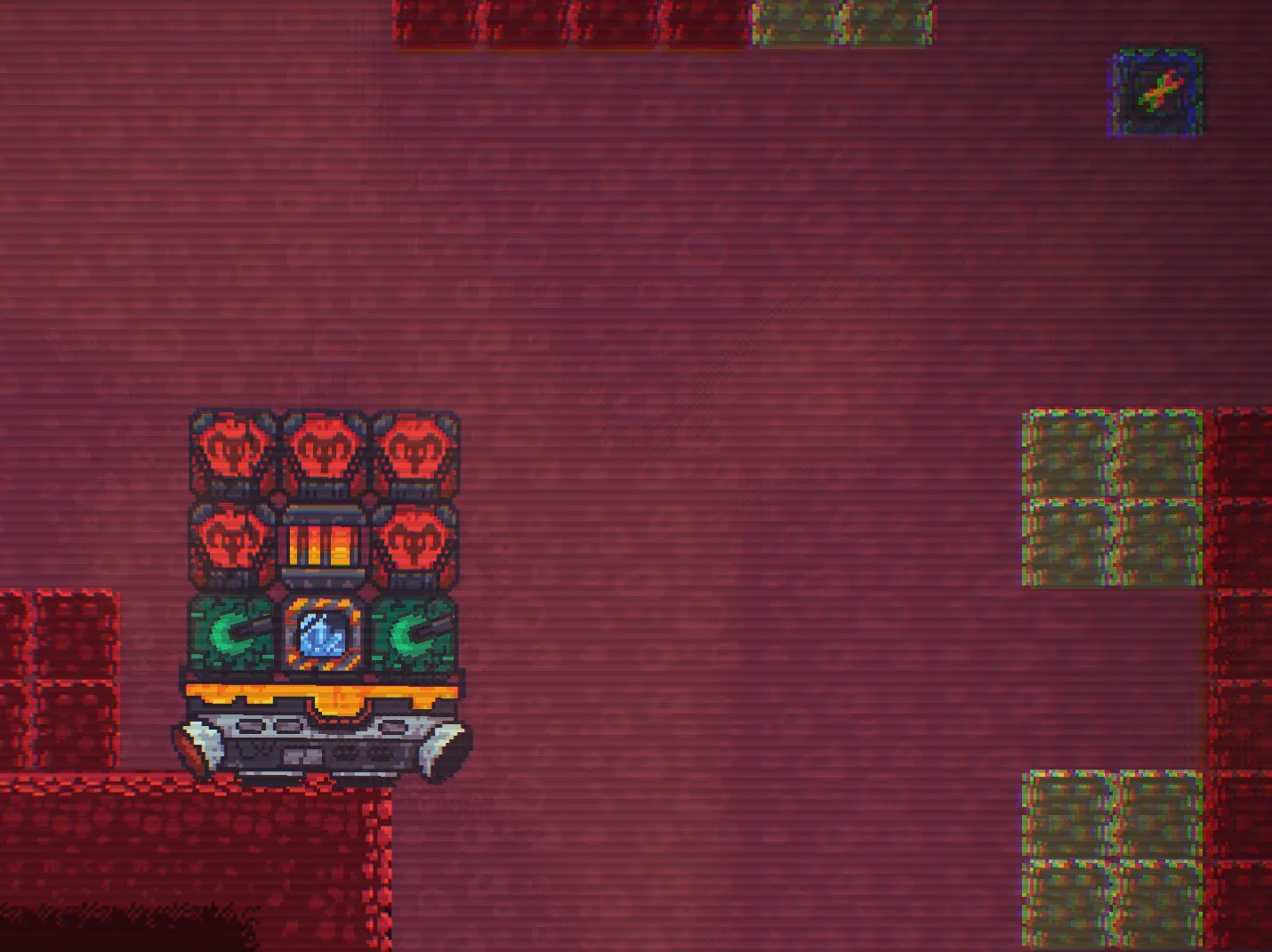
A filter effect does not change your HTML game UI, because the UI is not drawn by the renderer. For an effect on one actor, use a shader instead.
Writing a filter effect
Section titled “Writing a filter effect”A filter effect extends FilterEffect and is named by @DefineFilterEffect. This one blurs the
screen:
import { FilterEffect, DefineFilterEffect } from 'dacha';import { BlurFilter } from 'pixi.js';
interface ScreenBlurOptions {  strength: number;}
@DefineFilterEffect({  name: 'ScreenBlur',  fields: [{ name: 'strength', type: 'number', initialValue: 4 }],})export default class ScreenBlur extends FilterEffect {  create({ strength }: ScreenBlurOptions): BlurFilter {    return new BlurFilter({ strength });  }
update(filter: BlurFilter, { strength }: ScreenBlurOptions): void { filter.strength = strength; }}| Method | When it runs | What it does |
|---|---|---|
create(options) |
When the effect is added | Returns a pixi.js Filter |
update(filter, options, elapsedTime) |
Every frame | Changes the filter. elapsedTime is in seconds. Optional |
Without update, the filter keeps the values create gave it. Implement update if options
change at runtime, or if the effect animates over time.
The fields on @DefineFilterEffect become the fields of the effect in the editor. They work as
described in declaring fields on the decorator.
Adding effects in the editor
Section titled “Adding effects in the editor”Filter effects are an option of the Renderer system. In the Systems tab, expand Renderer and
add effects under Filter Effects. Create New in the same picker
generates a filter effect class.
The renderer applies effects in the order of the list, from top to bottom. Drag an effect to reorder it.
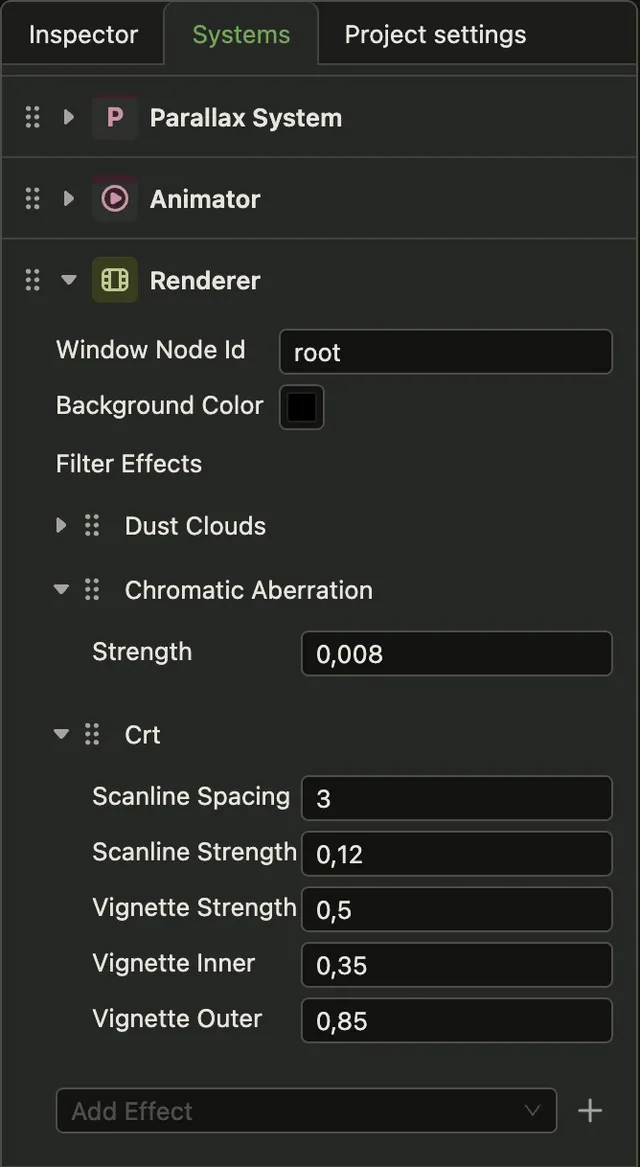
The editor viewport does not show filter effects. To see them, open the game in the browser.
Changing effects at runtime
Section titled “Changing effects at runtime”RendererAPI adds and removes effects while the game runs:
import { RendererAPI } from 'dacha';
const renderer = world.systemApi.get(RendererAPI);
const blur = { name: 'ScreenBlur', options: { strength: 8 } };
renderer.addFilterEffect(blur);
// laterrenderer.removeFilterEffect(blur);| Method | What it does |
|---|---|
addFilterEffect(config) |
Adds the effect at the end of the list |
removeFilterEffect(config) |
Removes the effect. Pass the same object you added |
clearFilterEffects() |
Removes all effects, including the ones from the configuration |
getFilterEffects() |
Returns the configs of the active effects, in order |
removeFilterEffect finds the effect by object, not by name. Keep the object you passed to
addFilterEffect, or find it in getFilterEffects().
To change an active effect, change options on its config object. update receives the new values
in the next frame:
blur.options.strength = 2;The renderer is a world system, so effects stay active when the game changes scenes.
Registering filter effects
Section titled “Registering filter effects”Filter effect classes reach the renderer through the engine’s resources.
Import them and pass the result to the renderer:
const gameFilterEffects = import.meta.glob('./**/*.filter-effect.ts', { eager: true });
const engine = new Engine({  // ...  resources: {    [Renderer.systemName]: {      filterEffects: Object.values(gameFilterEffects).map((module) => module.default),    },  },});
See how scripts are found for more information.